

How To Create Iframe In Javascript
Add iframe to div using Javascript
You can load an iframe on a webpage even after the webpage has completely loaded. You are going to use javascript to load an iframe through button click.
For this example, you will be using Substack email subscription form iframe, you can replace the iframe with an iframe of your choice.
Add iframe dynamically using Javascript
1. Create div container in HTML
First, you are going to create a div container that will hold your button and your subscription form. You are going to add the button. Then, copy the iframe from source and paste it in your div. you want to make sure the iframe looks exactly the way you want.
Code:
<div id="load-subscribe"> <button id="subscribe">subscribe</button> <iframe src="https://devpractical.substack.com/embed" width="400" height="100" style="border:none; background:white;" frameborder="0" scrolling="no"></iframe> </div> <script type="text/javascript"> var loadSubscribe = document.getElementById("load-subscribe"); </script> Result: 
Create iframe element
Next, you are going to create an iframe using Javascript:
var substack = document.createElement("iframe"); You won't be able to see it until you append it you your div container.
2. Add attribute to the iframe.
Then, you are going to add the attributes found in your iframe. In my case, I will need to add: width, height, border style, border background, frameborder and scrolling.
Code:
substack.src = "https://devpractical.substack.com/embed"; substack.width = "400"; substack.height = "100"; substack.frameBorder ="0"; substack.scrolling = "0"; substack.style.border= "none"; substack.style.background = "white"; 3. Append iframe to div through javascript
You are now going to add the iframe to the webpage and make it visilble. If you refresh your example, your iframe should load on the browser.
Code:
loadSubscribe.appendChild(substack); Results: 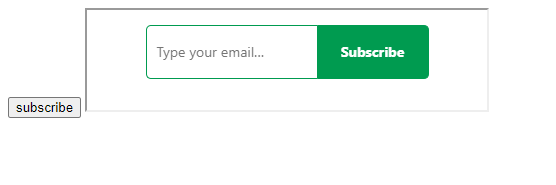
4. Use button to load iframe
Listen for the click event on your button and use it to append the iframe. You can also use it to hide the button.
document.getElementById("subscribe").addEventListener("click", function(){ // Add Iframe to webpage loadSubscribe.appendChild(substack); // Hide button this.style.display = "none"; }) 
5. Final code
You can copy the complete code example and test it on your own.
<div id="load-subscribe"> <button id="subscribe">subscribe</button> </div> <script type="text/javascript"> var loadSubscribe = document.getElementById("load-subscribe"); // create iframe var substack = document.createElement("iframe"); // Add attributes substack.src = "https://devpractical.substack.com/embed"; // Set size and hide iframe border substack.width = "300"; substack.height = "150"; substack.frameBorder ="0"; substack.scrolling = "0"; substack.style.border= "none"; substack.style.background = "white"; // event to trigger iframe loading document.getElementById("subscribe").addEventListener("click", function(){ // Add Iframe to webpage loadSubscribe.appendChild(substack); // Hide button this.style.display = "none"; }) </script> Why use javascript to display iframe?
Using javascript to load an iframe increase the website loading speed. Only the necessary parts of the webpage are loaded and displayed during the innitial stages. This ensures your users are not waiting for long before the webpage completely loads. Users can load the other parts of the webpage by clicks or scroll triggers.
How To Create Iframe In Javascript
Source: https://devpractical.com/add-iframe-to-div-using-javascript/
Posted by: borbarusten.blogspot.com
0 Response to "How To Create Iframe In Javascript"
Post a Comment